![cartovista-logo (1).png]](https://knowledge.cartovista.com/hs-fs/hubfs/cartovista-logo%20(1).png?height=40&name=cartovista-logo%20(1).png)
How to Add New Geotiff Data?
1. Log-in to your CartoVista Portal
2. Select the data tabulation
3. Click on the Add Data Button

4. Drag and drop your Geotiff document to initiate the transfer.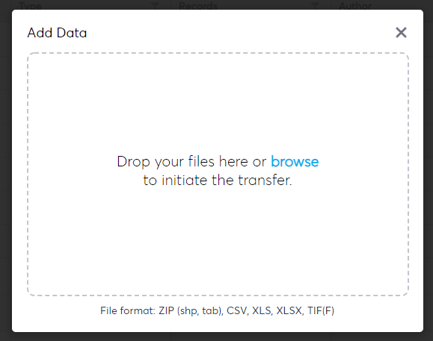
5. Choose to reproject your Geotiff data to Spherical Mercator or keep the original raster coordinate system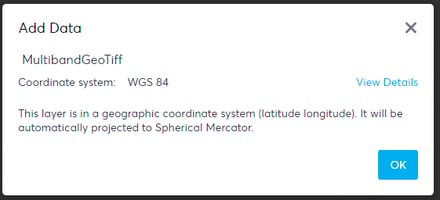
6. Specify the layer name, the grid units and the raster band to use.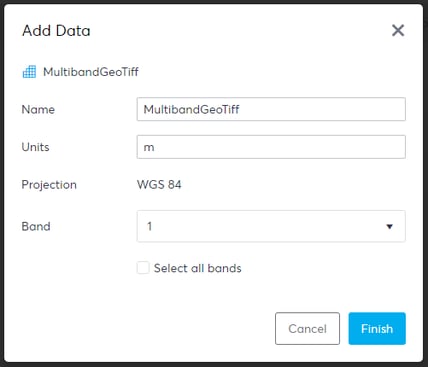
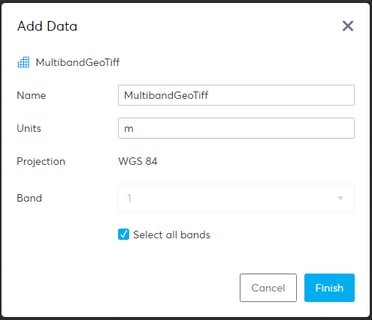
ℹ️ If you want to create a Time Series from the multiple bands of your geotiff, you can check Select all bands:
ℹ️ If your layer is an RGB aerial imagery GeoTIFF, you can check Bands are RGB :
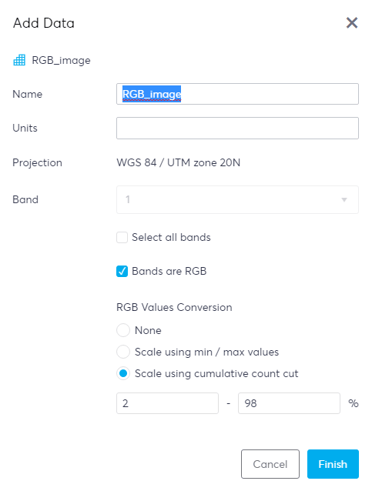
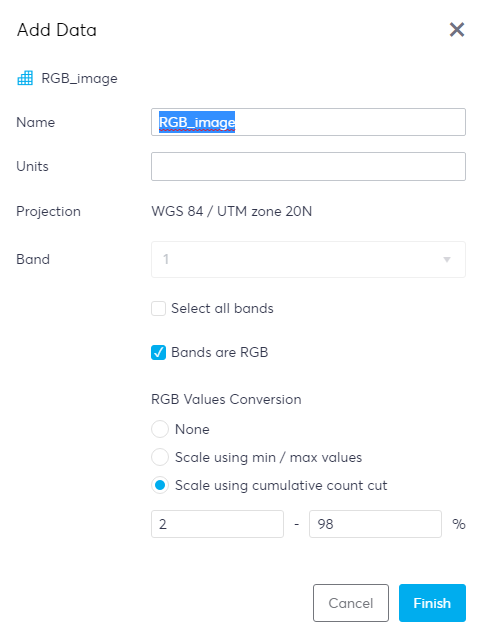
If you want to rescale your RGB aerial imagery GeoTIFF, you can do it by selecting the option "Scale using cumulative count cut".
7. The data you have uploaded is now available as a Raster Grid Layer
8. Select the layer you have uploaded. Its properties are displayed. You can then see associated information or perform actions like assigning permissions.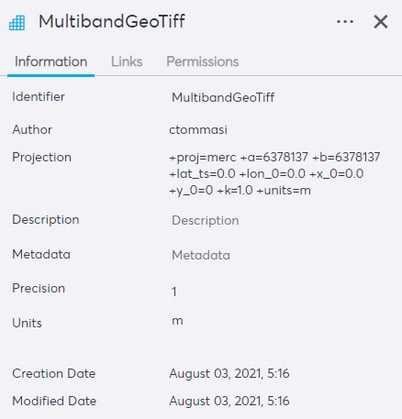
9. If you want to create a time series, see how to Create Raster Grid Time Series.
10. Once your new raster grid layer is loaded, you can Create a Map using the CartoVista Publisher.